
Most accounting software gives you a bank feed. A list of transactions that came in from the bank, waiting for someone to review, match, and reconcile them.
That's useful. But it's not visibility.
There's a deceptively simple question that most practices struggle to answer quickly: is this client's bank fully reconciled? In most setups, answering that means logging into the client's accounting software, pulling up the bank feed, cross-referencing with a spreadsheet, or asking someone on the team who might know.
Multiply that by 20 or 30 clients, each with multiple bank accounts, and you've lost a significant chunk of the week before any real work gets done.
That's what we built bank visibility in Practice View to solve. And it's worth saying the obvious part too: your practice isn't doing the reconciliation. Rex is. The bank lines are being collected, processed, and reconciled continuously in the background.
Practice View gives you the ability to see that it's happening, verify the output, and step in only when something genuinely needs your attention.
What you see when you log in
When you open any client in Practice View and go to the Bank tab, you see all of that client's bank accounts laid out as cards.
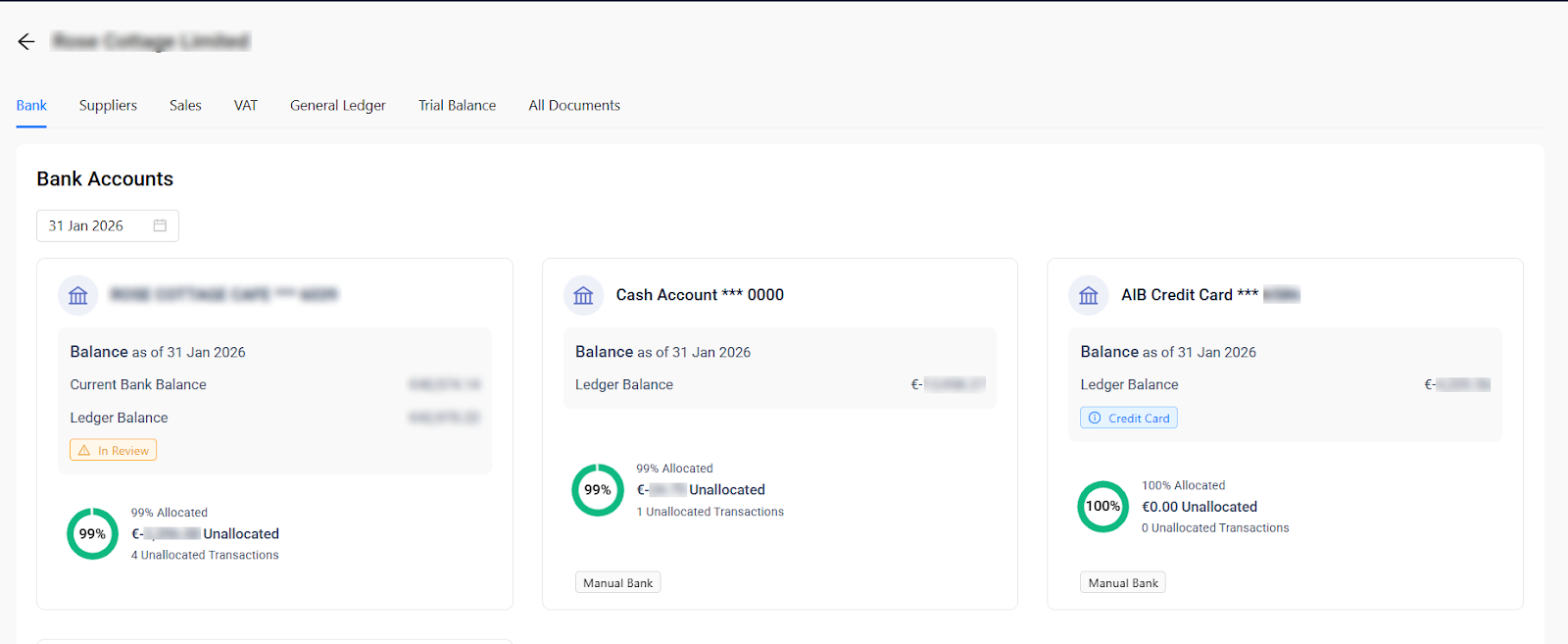
Each card gives you a snapshot:
- Account name and last four digits. So you know exactly which account you're looking at.
- Current bank balance and ledger balance. Side by side, so you can immediately see whether they align.
- Allocation percentage. How much of the bank activity has been processed and matched, shown as a visual indicator.
- Unallocated amount and transaction count. What's still in progress. Rex is actively working on these.
- Status. Tags like "In Review" tell you at a glance if something needs attention.
- Account type. Whether it's an auto-connected account with live data or a manual bank based on uploaded statements.
This is the overview level. You're scanning all accounts for one client, seeing where things stand, and deciding whether you need to go deeper. Most of the time, you don't.
Drilling into an individual account
When you do need more detail, click into any account, and you get the full picture.
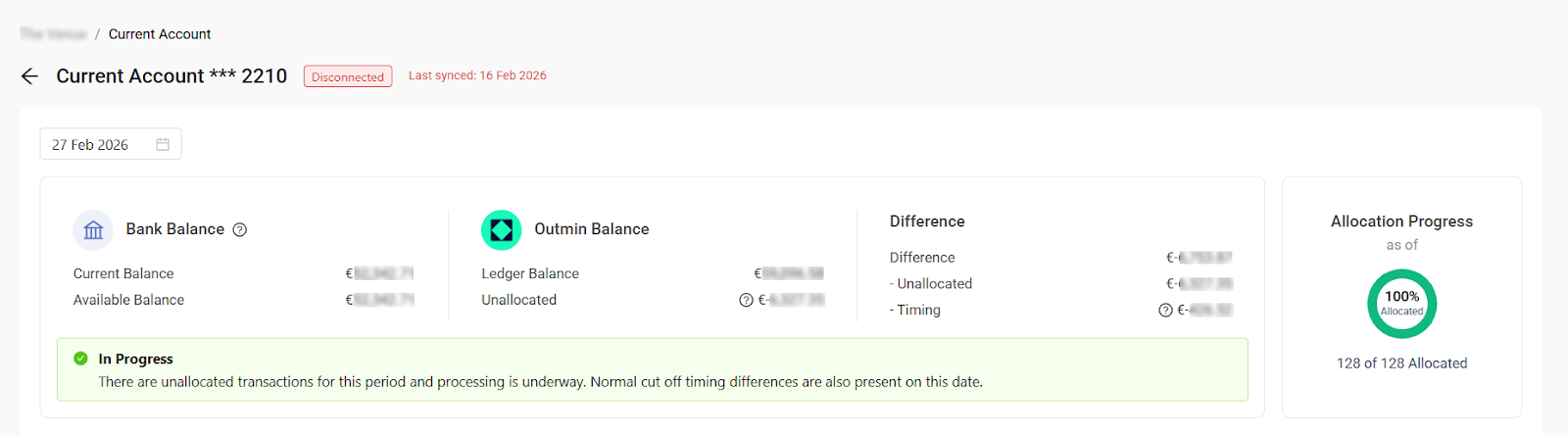
At the top, you see the connection status and when the account was last synced. Below that, the screen is divided into three panels:
- Bank Balance. The actual balance from the connected bank account, showing both the current balance and available balance.
- Outmin Balance. The ledger balance in Outmin, plus the unallocated amount (bank lines that Rex is still processing).
- Difference. The gap between the bank and Outmin, broken down by what's unallocated and what's a timing difference. This is where the algorithm does its work. If unallocated items and normal timing fully explain the difference, the account is in a healthy state. If not, it gets flagged.
Below the panels, you'll see a status message that explains what's happening in plain language. No guessing. The system tells you where things stand.
The transaction level
Scroll down and you'll find three tabs: Unallocated, Allocated, and All.
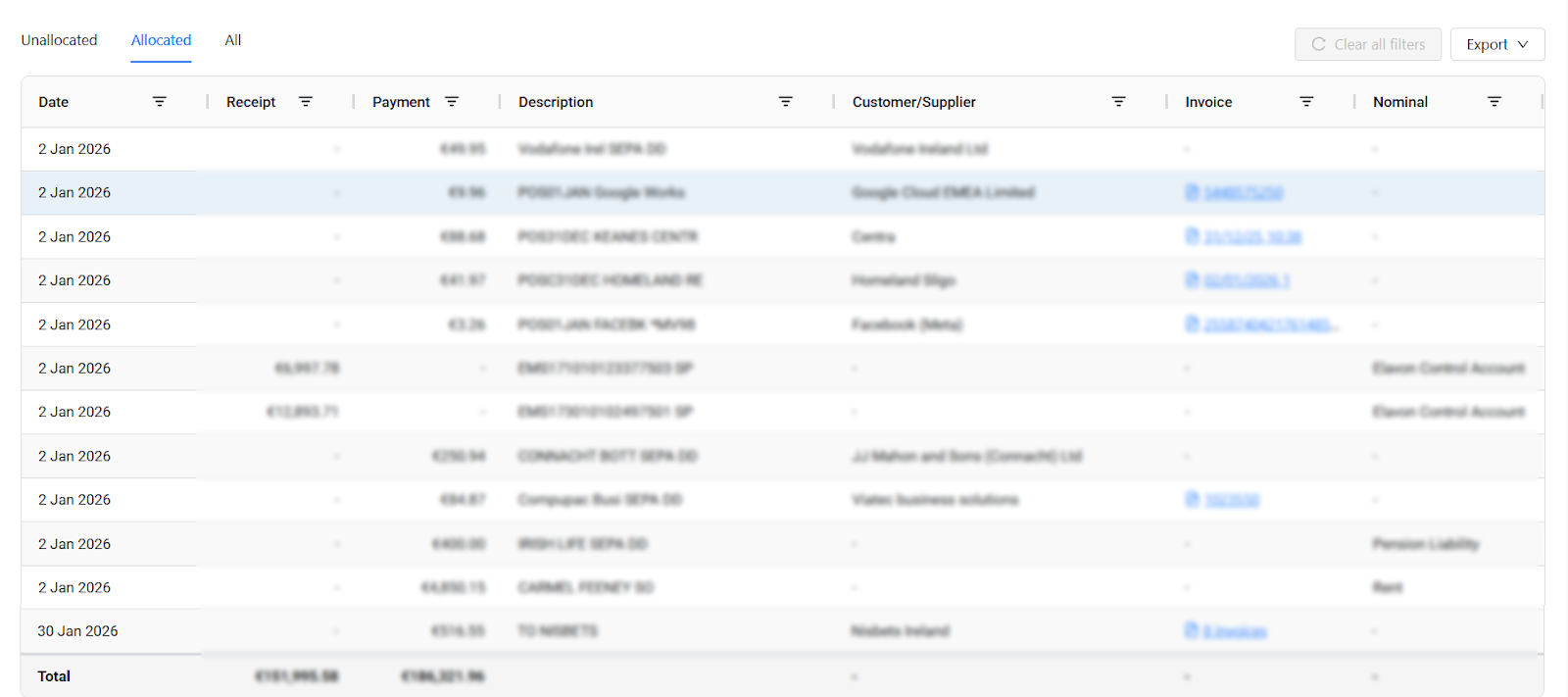
- Unallocated shows every bank line that hasn't been matched yet. Each line shows the date, amount, description.
- Allocated shows everything that's been processed, with full detail.
- All gives you the complete transaction history for the account.
Everything is filterable and exportable.
For unallocated items, you can now also see active Rex conversations. These are the items Rex is working on, chasing documents or waiting on a client response. Your team doesn't need to action them. They just need to see what's in progress.
If Rex has asked a client for a missing invoice or additional context, that conversation is visible directly alongside the bank line. You know what's been requested, when, and whether the client has responded.
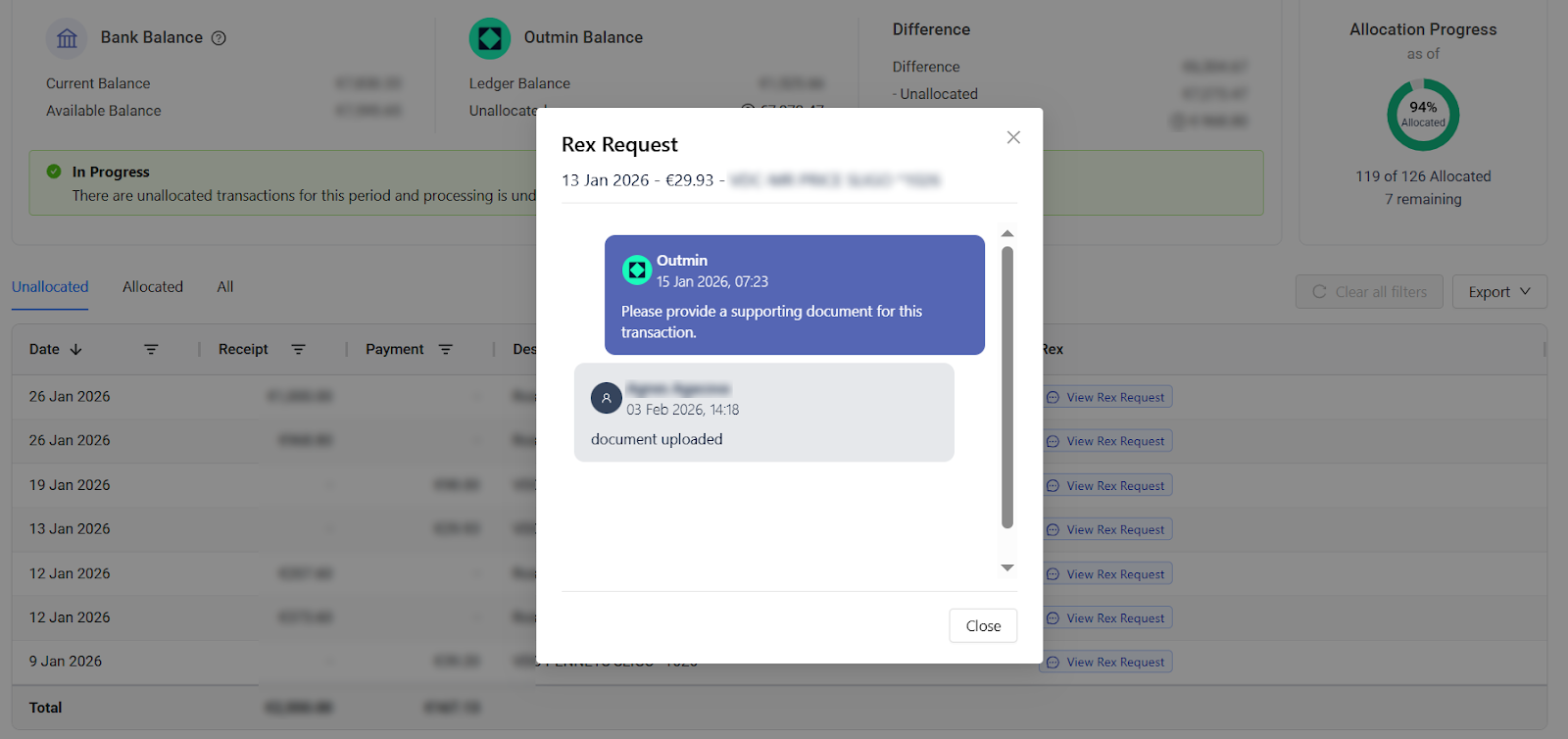
This is one of those details that saves more time than you'd expect. Instead of checking with the Outmin team or switching to another system, you can see exactly where things stand for any given transaction.
The algorithm behind the status
The reconciliation status isn't just a simple calculation of matched vs. unmatched. Behind each bank account, there's an algorithm that evaluates the overall health of the account based on its history.
Here's what that means in practice:
If the bank balance and ledger balance have been consistently aligned over the past few months, the account shows a healthy state. The algorithm has confidence that things are working as they should.
If there's been a persistent difference, the system doesn't just flag it as a problem. It tries to identify the cause. Common explanations include a missing opening balance (one of the most frequent issues during onboarding), timing differences where a transaction has gone through the bank but hasn't appeared in the feed yet, or unprocessed items sitting in the queue.
The point is that you're not just seeing a number. You're seeing an informed assessment of where the bank stands, with context that helps you understand whether something needs your attention or whether it's already being handled.
Connection monitoring
Bank data is only useful if it's current. Practice View shows the connection status of every bank account: whether it's live, disconnected, or manually updated, and when the last sync happened.


If a client's bank connection drops, you see it immediately. For auto-connected accounts (those linked via Open Banking), data flows in continuously. For manual accounts, where someone uploads bank statements, you can see that too, along with when the last upload came through.
This matters because a disconnected bank account can quietly create problems. Transactions stop flowing in, reconciliation stalls, and the books drift out of date. With connection monitoring, you catch that early.
Exports and data access
Everything in the bank section is exportable. Whether you need to share reconciliation data with a client, pull it into a spreadsheet for analysis, or keep records for compliance purposes, you can generate an export with a single click.
This includes unallocated items, allocated transactions, and full account histories. Your practice retains full control of the data.
Why this matters for your practice
Bank reconciliation visibility might sound like a small thing. But for practices, the cumulative time spent just figuring out where things stand across all clients is substantial.
When that information is available instantly, and the reconciliation work itself is already being done by Rex, several things change:
Your team prioritises better. Instead of checking every client manually, they can focus on the accounts that actually need attention.
- Client conversations improve. When a client asks about their bank status, you have an immediate, accurate answer. No more "let me check and get back to you."
- Issues get caught earlier. A persistent difference or a disconnected account is visible the moment it appears, not weeks later when someone happens to notice.
- Time goes back to higher-value work. Your team isn't doing the reconciliation. Rex is. The hours that used to go into matching transactions and chasing bank data can be redirected to advisory, compliance, and client work that earns better fees.
This is one of the features that early partners told us made the biggest practical difference to their week. Not because it's the most complex thing in the platform, but because it solved a daily frustration that had been quietly consuming time for years.
See it for yourself
Bank reconciliation visibility is available to all practices using Practice View, at no additional cost. It's part of Outmin’s autonomous bookkeeping platform.
If you're already with us, log in and explore the bank section. If you're not, book a demo and we'll walk you through it.